Backup and Restore in One Instance
This topic details the process of backing up a collection and restoring it from the backup within the same Milvus instance.
Overview
The diagram below illustrates the backup and restore process within a single Milvus instance.
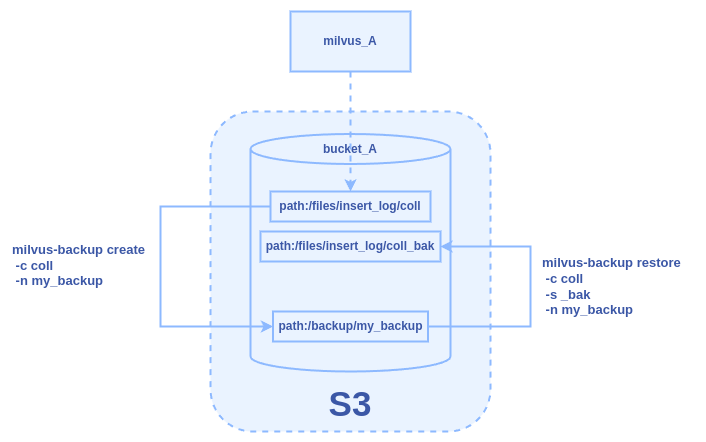
Assume we have a Milvus instance, milvus_A, using a bucket named
bucket_A for data storage. In this example, our goal is to complete the
following tasks:
-
Create a backup (
my_backup) for collection coll inbucket_A. -
Restore from the backup and name the restored collection
coll_bak.
Prerequisites
-
Ensure the milvus-backup tool is installed.
-
Familiarize yourself with configuring Milvus object storage settings. For details, refer to Object Storage.
Back up the collection
Step 1: Prepare configuration
Go to the directory of the milvus-backup project and create a directory
named configs:
mkdir configs
cd configs
Download the backup config file backup.yaml:
wget https://raw.githubusercontent.com/zilliztech/milvus-backup/main/configs/backup.yaml
The file structure looks like this:
├── configs
│   └── backup.yaml
├── milvus-backup
└── README.md
Step 2: Edit configuration file
Modify the backup.yaml file to set the appropriate configurations for
milvus_A. Below is the sample storage configuration:
# Related configuration of minio, which is responsible for data persistence for Milvus.
minio:
  # cloudProvider: "minio" # deprecated use storageType instead
  storageType: "minio" # support storage type: local, minio, s3, aws, gcp, ali(aliyun), azure, tc(tencent)

  address: localhost # Address of MinIO/S3
  port: 9000   # Port of MinIO/S3
  accessKeyID: minioadmin  # accessKeyID of MinIO/S3
  secretAccessKey: minioadmin # MinIO/S3 encryption string
  useSSL: false # Access to MinIO/S3 with SSL
  useIAM: false
  iamEndpoint: ""

  bucketName: "bucket_A" # Milvus Bucket name in MinIO/S3, make it the same as your milvus instance
  rootPath: "files" # Milvus storage root path in MinIO/S3, make it the same as your milvus instance

  # only for azure
  backupAccessKeyID: minioadmin  # accessKeyID of MinIO/S3
  backupSecretAccessKey: minioadmin # MinIO/S3 encryption string

  backupBucketName: "bucket_A" # Bucket name to store backup data. Backup data will store to backupBucketName/backupRootPath
  backupRootPath: "backup" # Rootpath to store backup data. Backup data will store to backupBucketName/backupRootPath
Step 3: Create backup
Once backup.yaml is saved, create a backup named my_backup:
./milvus-backup create -c coll -n my_backup
This command creates the backup bucket_A/backup/my_backup in the object
storage of milvus_A.
Restore from the backup within milvus_A
Once the backup is created, you can restore from it using the command below:
./milvus-backup restore -c coll -n my_backup -s _bak
This command restores from the backup and creates a new collection named
coll_bak in milvus_A, with data stored in bucket_A/files/insert_log/[ID of new collection].